CANNED WEB

LOCK A MAC TO ONE WEBSITE. FULL SCREEN.

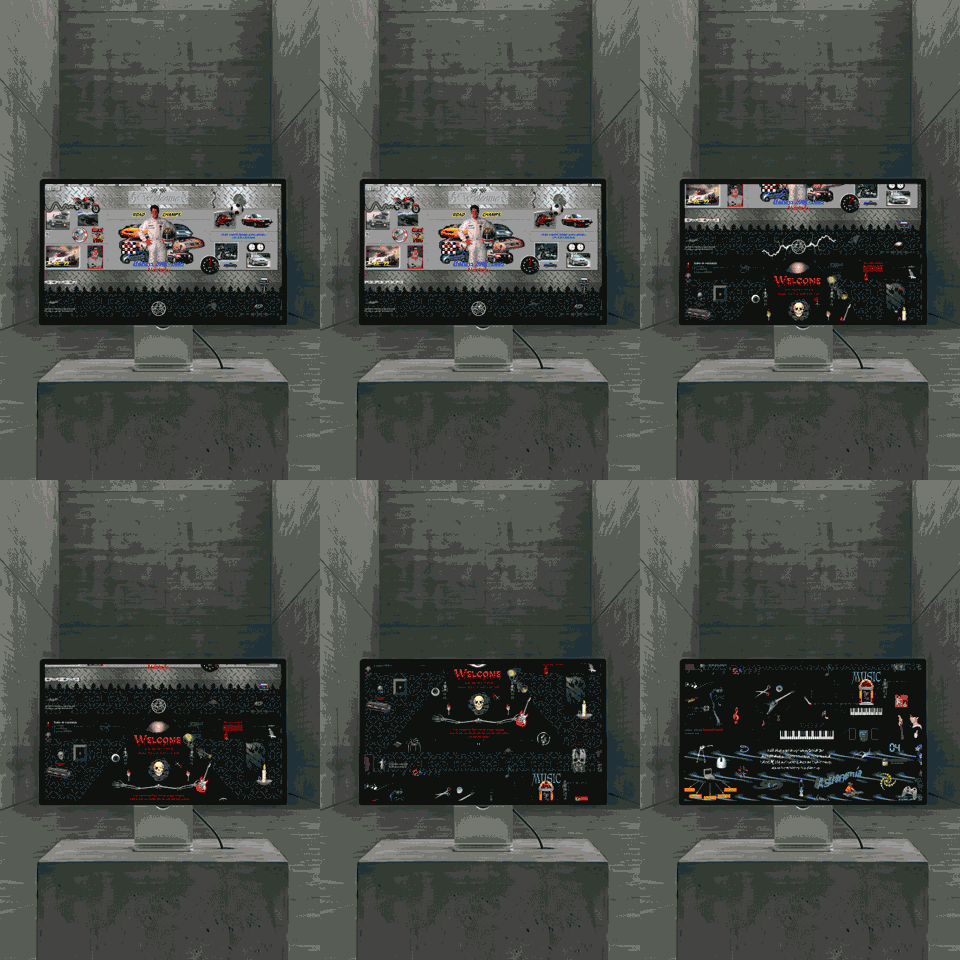
Canned Web, at an exhibition
Locked

VISITORS CAN'T ESCAPE

Full screen. No dock, no menu bar, no address bar. Spotlight and Cmd-Tab stop working. Visitors see your site and nothing behind it.
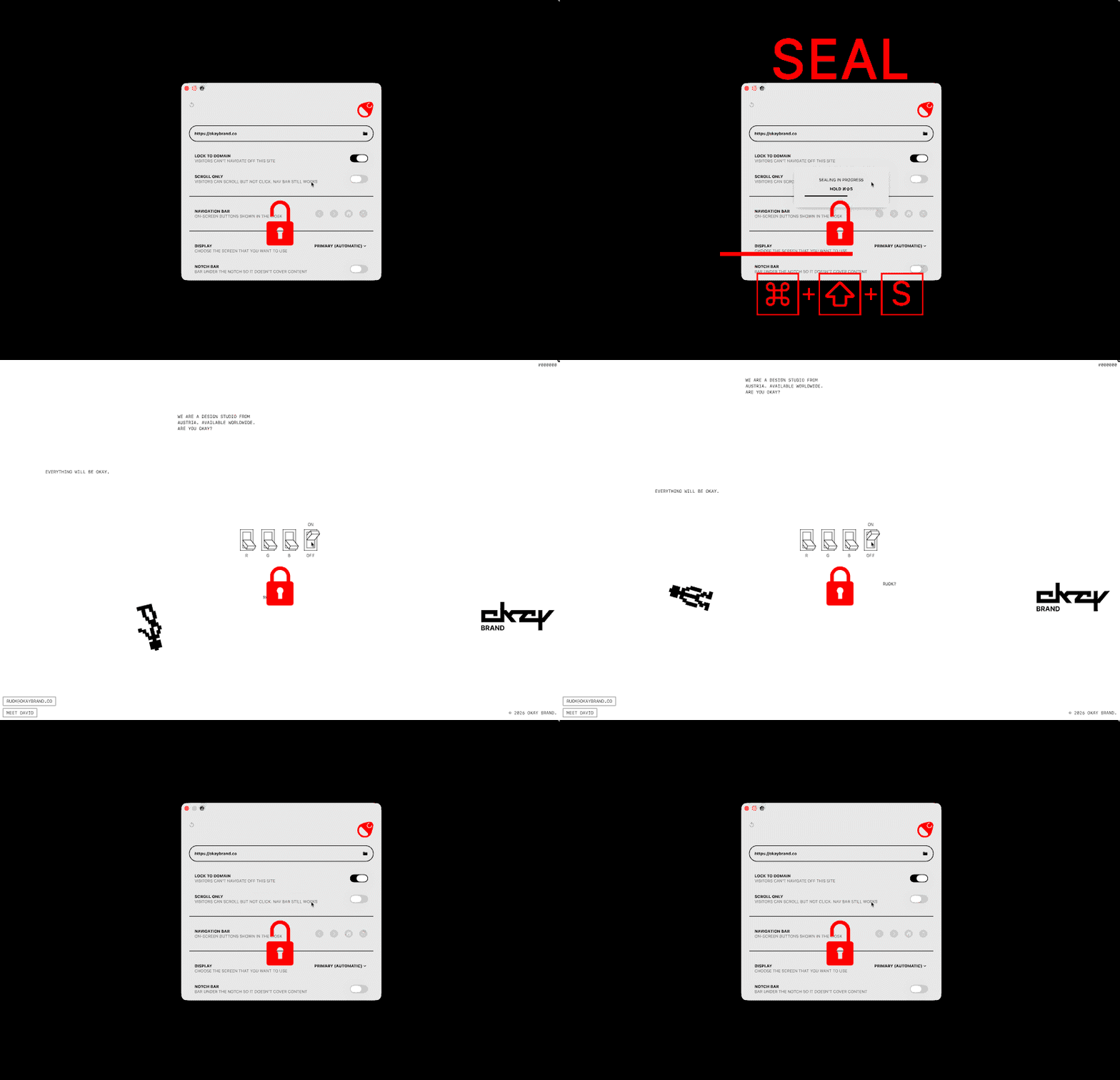
Sealing gif
⌘ + ⇧ + S

Seal Your Website

Point Canned Web at any URL and seal it with one keyboard shortcut. No config files, no MDM, no profiles, setup takes seconds.
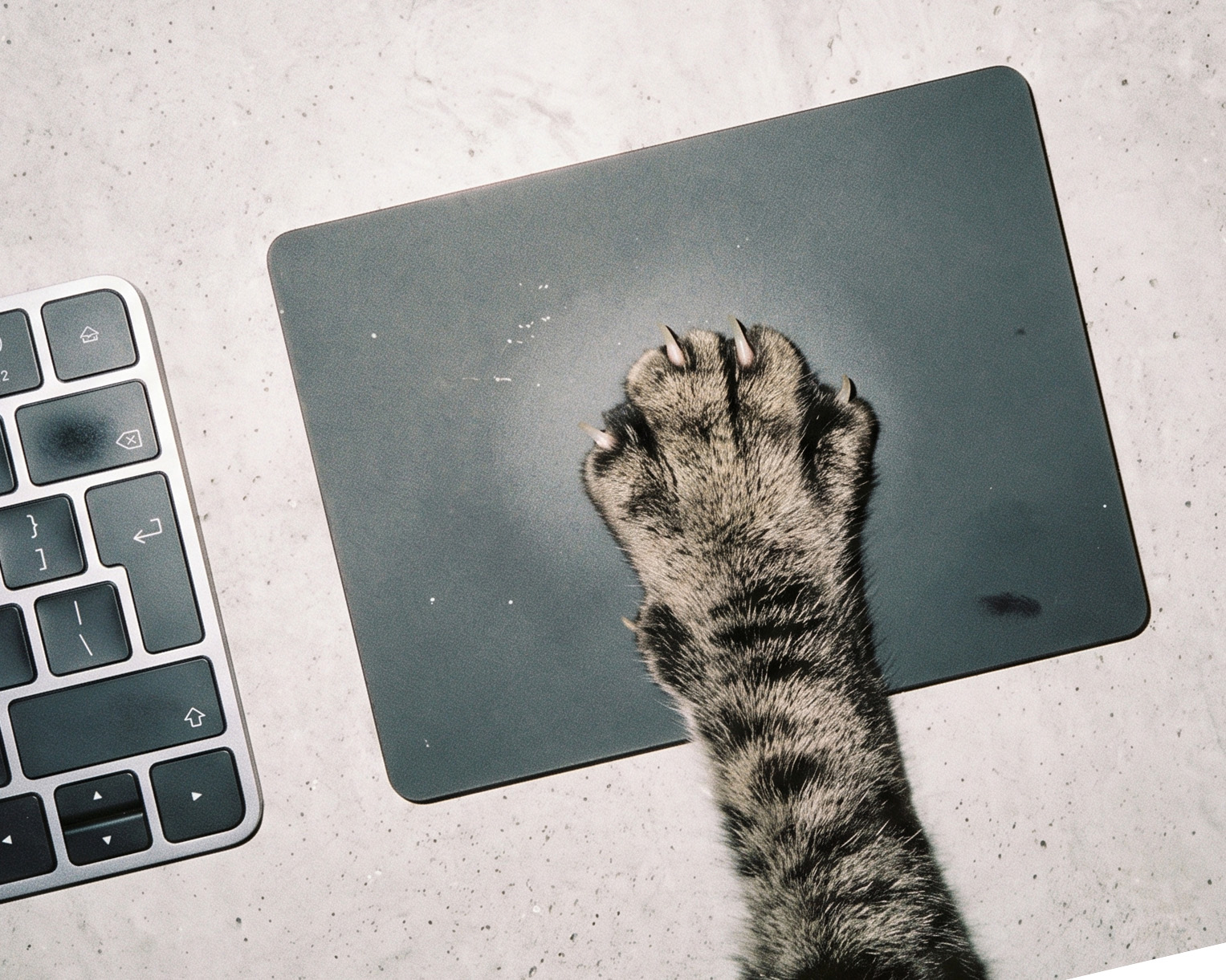
Keyboard + trackpad gif
Cats love it

SCROLL, TAP, EXPLORE

Locked down doesn't mean frozen. Visitors scroll, tap, type and click your site exactly as built. The lockdown blocks the exits, not the experience.
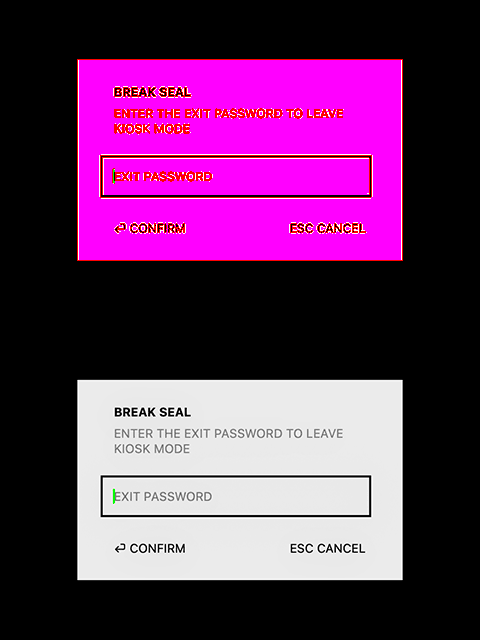
Password screenshot

Password Protected

Turn on an exit password and nothing else breaks the seal. Leave the Mac in public knowing nobody can quit the app or wander into the system.

⌘ + ⇧ + S
Download for Mac

How It Works

Enter a URL, hold ⌘⇧S, walk away. Same shortcut brings you back. Add an exit password if the Mac is somewhere you don't trust.

One app, a hundred places to put it

Built for unattended Macs

What keeps a public screen running when nobody is watching

Automatically relaunches
If the app ever crashes or quits, a watchdog brings the kiosk back and seals the site again.
Recovers after a restart
Start at login and seal on launch, and a reboot or power cut lands straight back on your site.
Resets between visitors
Idle reset returns to your home page and clears navigation, scroll and form state after a period of inactivity.
Blocks every way out
Spotlight, Cmd-Tab, Cmd-Q, Mission Control and screenshots are blocked. The only exit is your password.

How to lock a Mac to one website, the three routes ↗

Pricing

One time purchase, future updates included

Full
License

€ 49.00
Machines

The whole app, one machine per license, buy as many as you need. One-time €49 per machine, future updates included, 14-day free trial.

Buy Now

Bigger
Project?

Rolling out across a fleet, or need something custom? Get in touch and we will sort it out.

Get In Touch

Features

Kiosk mode for your website on macOS

Seal any website
Lock a site fullscreen. Visitors use it but can’t reach the Mac.
Full keyboard lock
Blocks Spotlight, Cmd-Tab, Cmd-Q, Mission Control and media keys.
⌘⇧S seal gesture
One hold-to-seal, hold-again-to-exit gesture. The only way out.
Exit password
Optionally require a password to leave kiosk mode.
Lock to domain or path
Keep visitors on your site and subdomains, confine them to one path, or lock to the home page only. Off-site links don’t navigate.
Allow extra domains
Allowlist trusted domains like a payment provider or SSO, so a checkout or login redirect still works.
Scroll-only mode
Let visitors scroll but not click. The nav bar still works.
Remote or local sites
Point at a URL, or run a website folder stored on the Mac.
Works fully offline
Local sites need no internet, assets and routing just work.
Survives Wi-Fi drops
If the connection fails it shows a clean offline screen and keeps retrying, recovering on its own when the venue Wi-Fi returns.
On-screen controls
Optional back / forward / home / refresh, positioned as you like.
Pick the display
Run the kiosk on any connected screen.
Recovers after a restart
Starts at login and seals on launch, so a reboot or power cut lands back on your site.
Automatically relaunches
A watchdog brings the kiosk back if the app crashes or quits.
Resets between visitors
Returns to the home page after inactivity, ready for the next visitor.
Usage analytics
Anonymous, on-device, see how much the display gets used.
Silent auto-updates
Updates install quietly in off-hours; operators can turn it off.
License per machine
Run as many Macs as you like. Buy one license each; a single key unlocks the quantity you bought.
One-time purchase
No subscription. Future updates included.